Understanding Why IPTV Buffers
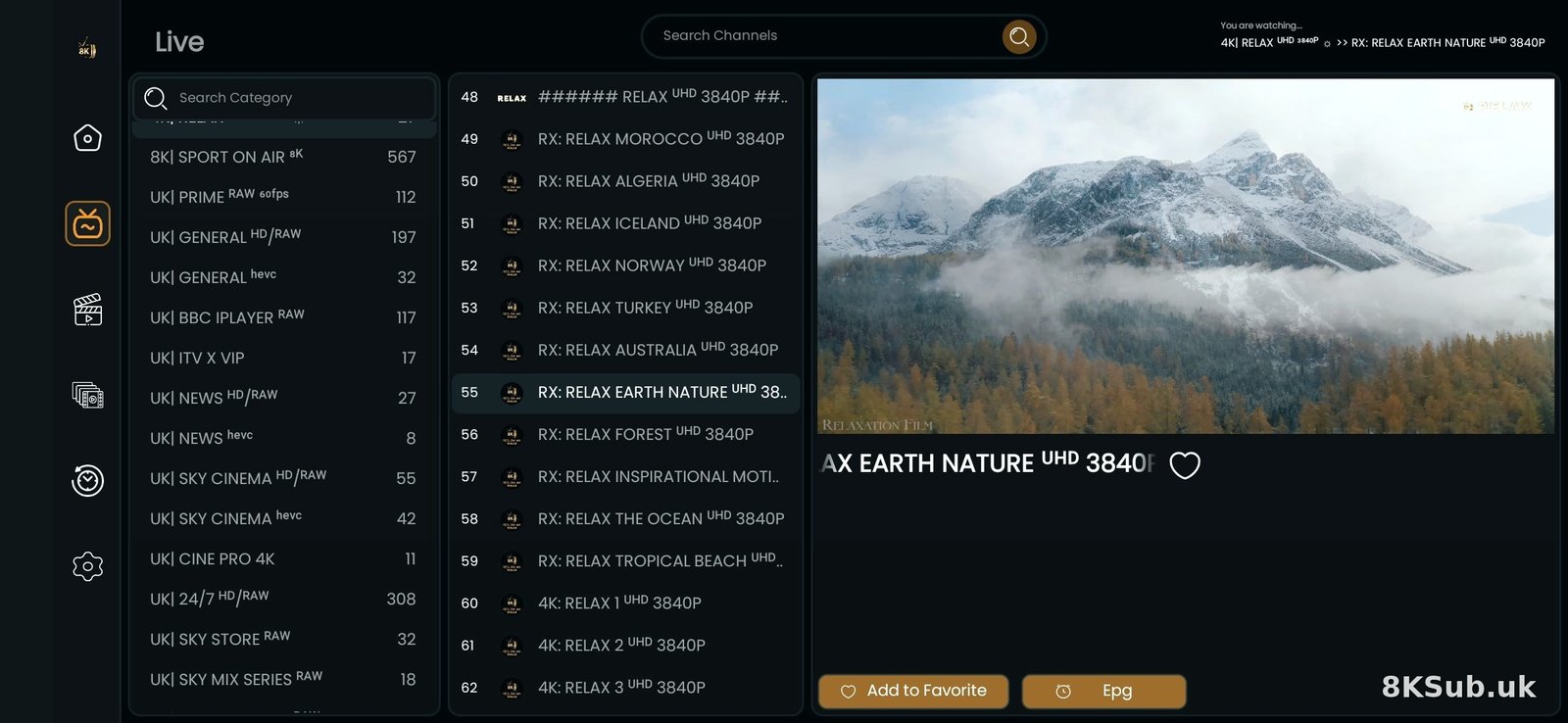
Before fixing the problem, let's understand what causes buffering. This knowledge helps you apply the right solution.
Common Causes of Buffering
🌐 Internet Issues (40% of cases)
- Slow connection speed
- Unstable WiFi signal
- Network congestion
- ISP throttling
⚙️ App/Settings Issues (30% of cases)
- Incorrect buffer settings
- Outdated app version
- Wrong decoder selection
- Cache overflow
🖥️ Device Issues (20% of cases)
- Overheating
- Insufficient memory
- Background apps running
- Storage full
📡 Server Issues (10% of cases)
- Provider server overload
- Channel-specific problems
- Maintenance downtime
- Geographic distance
Solution 1: Check Your Internet Speed
The most common cause of buffering is insufficient internet speed. Let's verify your connection.
How to Test Your Speed
- On your Firestick, open the Silk Browser or Downloader app
- Visit fast.com (Netflix's speed test)
- Wait for the test to complete (takes ~30 seconds)
- Note your download speed
Speed Requirements
| Streaming Quality | Minimum Speed | Recommended | Status |
|---|---|---|---|
| SD (480p) | 3 Mbps | 5 Mbps | ✅ Basic |
| HD (720p) | 5 Mbps | 8 Mbps | ✅ Good |
| Full HD (1080p) | 8 Mbps | 15 Mbps | ✅ Better |
| 4K Ultra HD | 20 Mbps | 25+ Mbps | ✅ Best |
If Your Speed is Too Slow
- Contact your ISP to upgrade your package
- Reduce streaming quality in app settings
- Limit other devices using internet
- Consider switching to a faster ISP
Solution 2: Switch to Ethernet Connection
WiFi is convenient but often causes buffering. Ethernet provides a stable, fast connection.
Why Ethernet is Better
- ✅ Consistent speed (no signal fluctuations)
- ✅ Lower latency (faster response)
- ✅ No interference from other devices
- ✅ Better for 4K streaming
- ✅ More secure
How to Connect Ethernet to Firestick
Option 1: Official Amazon Ethernet Adapter
- Purchase Amazon Ethernet Adapter for Fire TV Stick
- Plug adapter into Firestick's power port
- Connect Ethernet cable to adapter
- Connect other end to router
- Power on Firestick
Option 2: Third-Party OTG Cable
- Buy USB OTG cable with Ethernet port
- Connect OTG to Firestick
- Plug Ethernet cable into OTG
- Connect to router
Solution 3: Optimize WiFi Signal
If Ethernet isn't possible, optimize your WiFi for better streaming.
Router Placement
- Central Location: Place router in the middle of your home
- Elevated: Put router on a shelf, not on the floor
- Open Space: Keep away from walls and metal objects
- Distance: Within 10 meters of Firestick ideally
Use 5GHz WiFi Band
- Go to Firestick Settings > Network
- Look for your WiFi name with "5G" or "5GHz"
- Connect to 5GHz network instead of 2.4GHz
- 5GHz is faster but has shorter range
Solution 4: Adjust Buffer Settings
Increasing buffer size gives your device more time to load content, reducing buffering.
How to Change Buffer Settings
For IPTV Smarters Pro:
- Open app and go to Settings
- Select "Player Selection"
- Choose "Built-in Player (Default)"
- Go back to Settings
- Select "Buffer Size"
- Set to 10-15 seconds
- Restart app
For TiviMate:
- Go to Settings > Playback
- Find "Buffer Size"
- Set to 15-20 seconds
- Enable "Auto Frame Rate"
- Restart app
Solution 5: Clear Cache and Data
Accumulated cache can slow down your app and cause buffering.
Clear App Cache
- Firestick Settings > Applications
- Manage Installed Applications
- Find your IPTV app
- Select "Clear Cache"
- DO NOT select "Clear Data" (you'll lose settings)
- Restart app
Restart Firestick
Simple restart clears temporary files:
- Hold Home button on remote
- Select "Settings"
- My Fire TV > Restart
- Or unplug Firestick for 30 seconds
Solution 6: Change Video Player/Decoder
Different players handle streams differently. Switching can solve buffering.
Switch Decoders
In IPTV Smarters Pro:
- Settings > Player Selection
- Try different options:
- Built-in Player (Default)
- VLC Player
- MX Player
- External Player
- Test each for buffering
Solution 7: Close Background Apps
Running apps consume memory and processing power, causing buffering.
Close Apps on Firestick
- Hold Home button
- See running apps
- Select apps not in use
- Click "Close" or "Force Stop"
Apps to Always Close
- Other IPTV apps
- Games
- Web browsers
- File managers
- VPN apps (if not needed)
Solution 8: Reduce Streaming Quality
If your internet can't handle high quality, reduce it for smoother playback.
Change Quality Settings
In Your IPTV App:
- Go to Settings > Video
- Find "Default Quality" or "Stream Quality"
- Options usually include:
- Auto (app decides)
- 4K/Ultra HD
- 1080p Full HD
- 720p HD
- 480p SD
- Select lower quality if buffering persists
Solution 9: Check Provider Server Status
Sometimes the problem isn't on your end.
Signs It's a Server Issue
- All channels buffer (not just one)
- Problem started suddenly
- Other users reporting same issue
- Buffering at specific times (peak hours)
What to Do
- Contact your IPTV provider
- Check their social media/status page
- Ask if they're experiencing server issues
- Try different server if provider offers multiple
- Wait and try again later
Solution 10: Factory Reset (Last Resort)
If nothing else works, reset your Firestick to factory settings.
How to Factory Reset
- Settings > My Fire TV
- Scroll down to "Reset to Factory Defaults"
- Confirm the reset
- Wait 5-10 minutes for completion
- Set up Firestick again
- Reinstall IPTV app
- Reconfigure settings
Prevention: Stop Buffering Before It Starts
Regular Maintenance
- Weekly: Clear app cache
- Monthly: Restart Firestick and router
- Quarterly: Check for app updates
Best Practices
- Use Ethernet whenever possible
- Keep Firestick ventilated (prevent overheating)
- Don't overload with too many apps
- Monitor internet speed regularly
- Choose quality based on your speed
Troubleshooting Checklist
Use this checklist when buffering occurs:
☐ Step 1: Quick Fixes (Try These First)
- ☐ Restart IPTV app
- ☐ Restart Firestick
- ☐ Try different channel
- ☐ Check internet speed
☐ Step 2: Connection Issues
- ☐ Switch to Ethernet if possible
- ☐ Move router closer
- ☐ Switch to 5GHz WiFi
- ☐ Reduce connected devices
☐ Step 3: App Settings
- ☐ Increase buffer size
- ☐ Clear app cache
- ☐ Try different player
- ☐ Reduce video quality
☐ Step 4: Advanced
- ☐ Close background apps
- ☐ Check for app updates
- ☐ Contact provider
- ☐ Factory reset (last resort)
When to Contact Support
Contact your IPTV provider if:
- None of these solutions work
- Problem affects all channels
- Buffering started suddenly
- Other users report same issue
- You've tried everything for 24+ hours
Still Experiencing Buffering?
Our technical support team can diagnose and fix your specific issue remotely.
Get Technical SupportLast updated: April 2026. Solutions tested on Firestick 4K, Lite, and standard models.