Before You Start
Before installing IPTV on your Firestick, ensure you have:
- ✅ Amazon Firestick (any generation: 4K, Lite, or standard)
- ✅ Stable internet connection (10+ Mbps recommended)
- ✅ IPTV subscription with login credentials
- ✅ TV with HDMI port
- ✅ Remote control (Firestick remote or compatible)
Step 1: Prepare Your Firestick
1.1 Enable Developer Options
First, we need to allow installation of apps from unknown sources:
- From Firestick home screen, go to Settings (gear icon)
- Select My Fire TV (or Device Options on older models)
- Click on Developer Options
- Turn ON Apps from Unknown Sources
- Turn ON ADB Debugging (optional but recommended)
Note: If you don't see Developer Options, go to Settings > My Fire TV > About, then click on your device name 7 times to enable it.
1.2 Install Downloader App
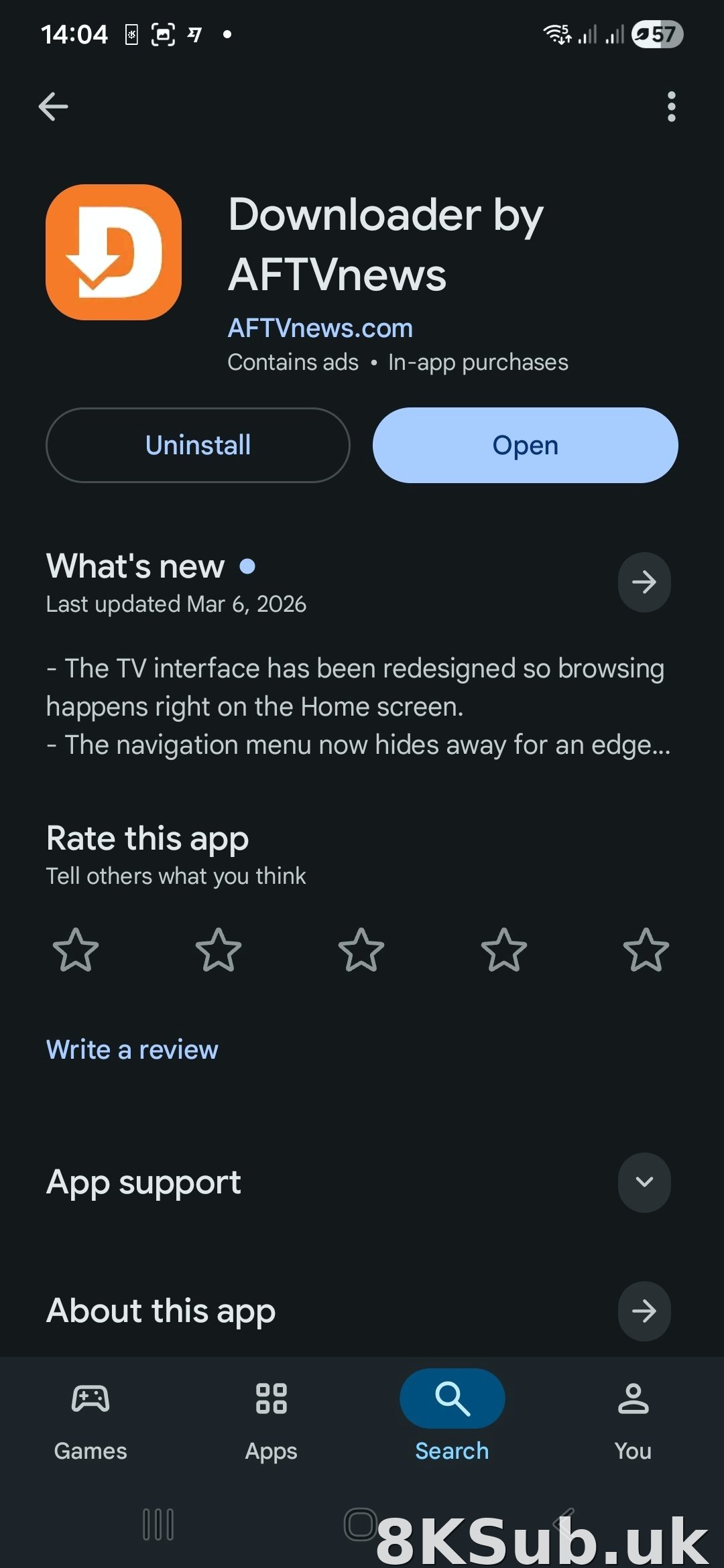
The Downloader app is essential for installing IPTV applications:
- From Firestick home, search for "Downloader"
- Select the orange Downloader app by AFTVnews
- Click Download or Get
- Wait for installation to complete (30-60 seconds)
- Open the Downloader app
Step 2: Download IPTV Player
Now we'll download the IPTV player application:
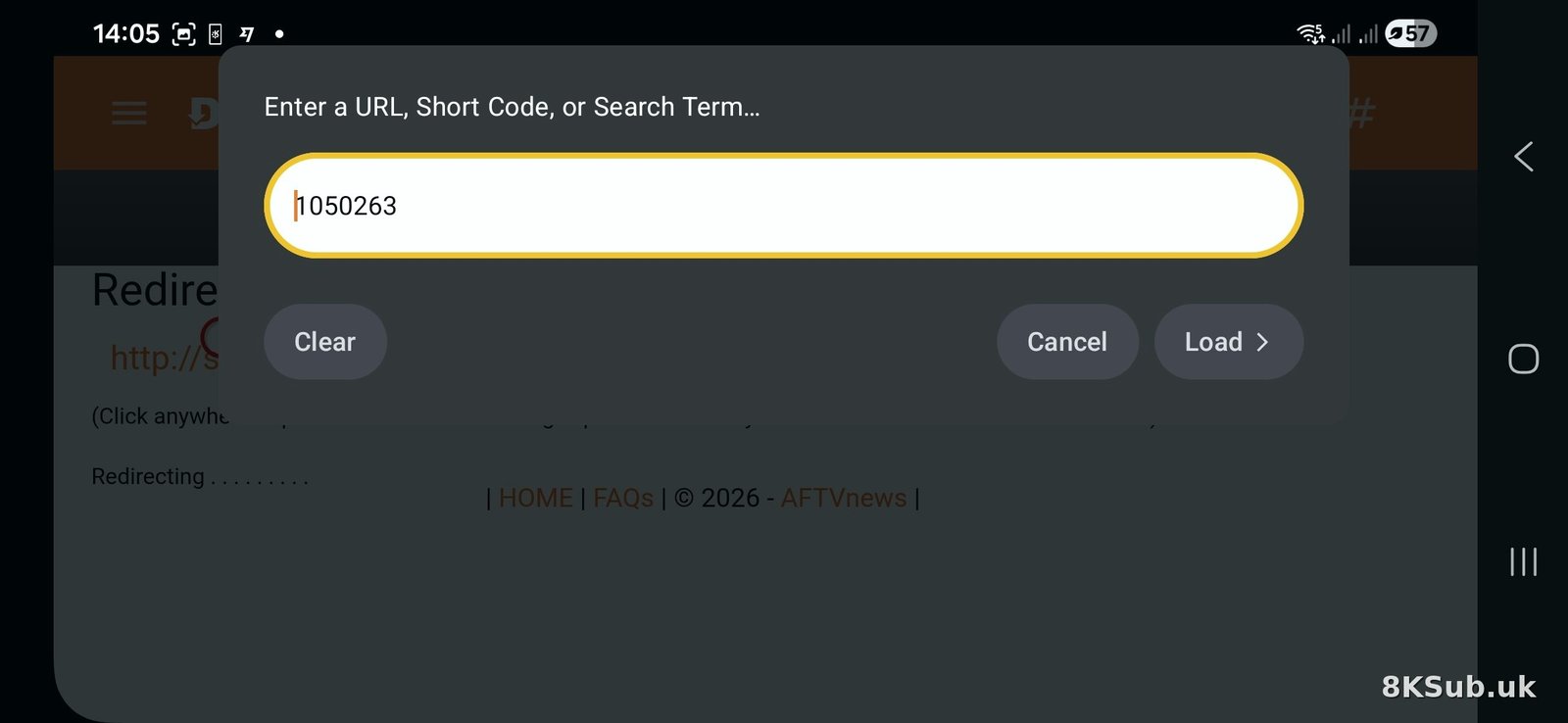
- Open the Downloader app
- In the URL field, enter your provider's download link
- Click Go
- Wait for the download to complete
- Click Install when prompted
Step 3: Configure IPTV App
Once installed, open the IPTV app and enter your credentials:
- Open the installed IPTV app from Your Apps
- Enter your Username
- Enter your Password
- Enter the Server URL (provided by your IPTV service)
- Click Login or Add User
Step 4: Start Watching
After successful login:
- Wait for the channel list to load (30-60 seconds)
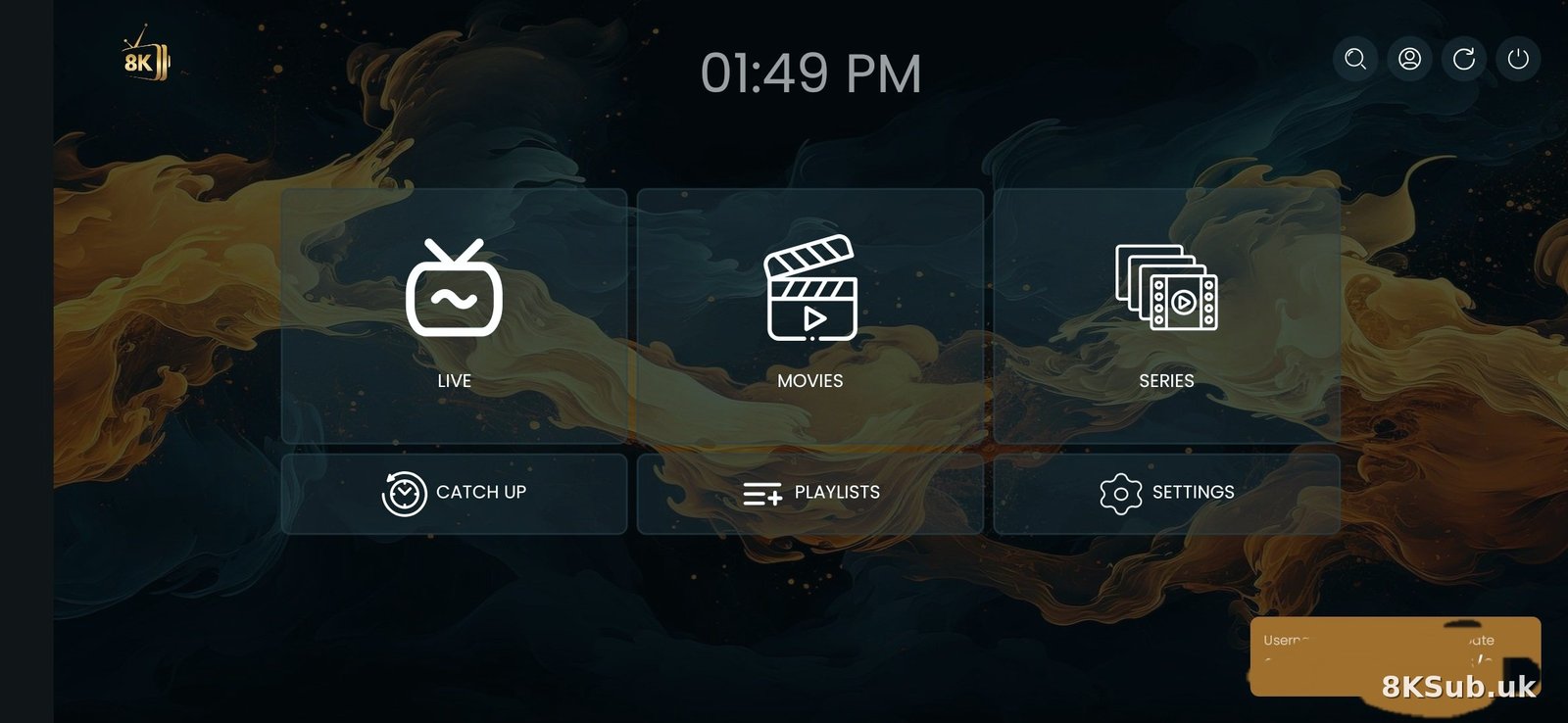
- Browse categories (Live TV, Movies, Series)
- Select a channel to start watching
- Use your remote to navigate and control playback
Troubleshooting Common Issues
"App not installed" Error
- Ensure "Apps from Unknown Sources" is enabled
- Clear Downloader app cache and try again
- Restart your Firestick and retry
"Invalid credentials" Error
- Double-check username and password (case-sensitive)
- Verify server URL is correct
- Contact your provider to confirm account is active
Buffering or Freezing
- Check internet speed (need 15+ Mbps for HD)
- Use Ethernet adapter instead of WiFi
- Lower video quality in app settings
- Clear app cache regularly
Best IPTV Apps for Firestick 2026
- IPTV Smarters Pro - Most popular, user-friendly
- TiviMate - Excellent EPG interface
- Perfect Player - Lightweight and fast
- XCIPTV - Modern interface design
Video Tutorial
Prefer watching instead of reading? Check out our video tutorial:
📹 Video tutorial coming soon! Subscribe to our newsletter to get notified.
Need Help?
If you're stuck at any step, our support team is here to help:
- 📱 WhatsApp: +44 7762 422 711
- ✈️ Telegram: @nolimitsexpo
- ⏰ Available 24/7 for setup assistance
Get Your Free Trial
Not subscribed yet? Get your free 24-hour trial with full setup support.
Request Free TrialLast updated: April 2026. Screens may vary slightly based on Firestick model and software version.